Tuesday, June 11, 2013

Zinio and Atomic Training New Site Instructions

Hi Everyone,
Recorded Books has updated the log in window for Zinio and Atomic Training
 
When you first open the site you may see a pop-up box with some basic instructions:

NOTE:  Check the "Don't show me this again" option to prevent the Welcome to the RBdigital Gateway information box from appearing each time the site is entered.
 

Once the pop-up box is closed, patrons will have options to Log in, Create a New Account, or Learn More.
     
NOTE: The log in used previously for Zinio and/or Zinio is still the log in information for this new page.  Now it is one log in for both options, Zinio and Atomic Training.
 
To enter a site click or tap on the Zinio or Atomic Training Title found at the top of each box.
 
Zinio: 
Zinio, the world's largest newsstand, offers full color, interactive digital magazines for your enjoyment. Browse from your library's collection of popular titles with no holds, no checkout periods, and no limit to the number of magazines you can download.
  • Current Issues — New issues are released simultaneously with the print edition many are available before they arrive at your library and are ready for immediate download
  • Easy browsing — Browse your library's collection of titles one at a time, search for your favorite magazines by title or use the convenient category feature to find new magazines which meet your interests
  • Manage your collection — Using the personal account you will create, you will have the opportunity to checkout the magazines you choose and read them instantly on your computer (both PC and Mac) or access the content on a portable media device. (Note: viewing options, including the ability to download or view the content while online, may differ based on the device and/or magazine publisher)
  • No limits — Check out as many issues as you want and keep them in your account as long as you wish
 
Search for a magazine by title, limit search by Genres, or go straight to the magazines you have checked out.
 
Atomic Training: 
A video-based how-to training resource, Atomic Training opens up unlimited access to thousands of short videos covering more than 300 of today's most popular software applications on both PCs and Macs.
  • All the latest offerings — Microsoft, Apple, Adobe, Google, and more
  • Valuable job training — Improve job skills with in-depth training on Excel and Photoshop, or learn valuable social media techniques with tutorials on Twitter, blogging, and pod casting
  • Mobile training — Learn how to use mobile products such as the iPhone and iPad
  • Access anywhere — Watch videos at the library or remotely from home


Hope you enjoy our digital magazine collection as well as our video-based training resources for popular software.
Dee

Wednesday, May 22, 2013

OverDrive Media Console Mobile App Update and Adobe I

Hi Everyone,
On May 29th OverDrive will release an updated version of the OverDrive Media Console mobile app for iOS and Android (v2.6.5).  What does this mean for library emedia users? 

For Android devices and iOS v2.6.5 (Could include iPods, iPhones and other Apple devices)
  • Enhancements to improve the speed of the in-app browser
  • Bug fixes
Specifically for iOS v2.6.5 (Could include iPods, iPhones and other Apple devices)
  • Reauthorizing of Adobe ID for ALL iOS users
The following instructions are for re-authorizing Adobe ID's on an iOS system after their OverDrive Media Console mobile app update:

1.  Users with Adobe IDs in place will see the following message.

 
2.  Tap Sign in and the Adobe Authorization screen will show.

 
NOTE:  The Adobe ID (re-authorization) Authorization screen will include the previously used email address. 
3.  Enter the password and tap Authorize.  If you have forgotten the password, the Forgot password link will be available to use.
 
Audiobook listeners:
Audio book users won't notice anything different unless they attempt o download parts of an a audio book partially downloaded prior to the update.  A message will appear if this should occur.
 
 
If you see this message, visit your Ohio eBook Project account and download the title again.


Now your Adode ID is in place and you may continue downloading your library ematerials using the OverDrive Media Console mobile app. 

Happy Reading!
Dee


Monday, April 22, 2013

New Layout Options from Ohio eBook Project

Recently the Ohio eBook Project made some changes to how patrons can view their results when they search for items.  Results will initially be shown as only book jackets with author and title below, as has been the case since the major site upgrade around Christmas.

Cover View

But at the top right of the search results, patrons now have two other options for viewing their results--Grid and List.


Grid View is nice for people who have grown accustom to the Cover View, but would like a little more information.  Rather than having four titles across, there are only two, but beside each is placed the beginning of the book summary.  And if the book is part of a series, that information is included as well.


Grid View

One more option is available for those who would prefer to browse results from top to bottom, and that is List View.  Like Grid View, List includes the start of the summary and series information, but it also includes the option to Borrow or Place a Hold on the title directly from the search results rather than clicking on the book jacket first.


List View

Much of the check out procedure remains the same after this point, but now patrons have just a little more flexibility when finding the perfect next read.


Shelia

Thursday, March 21, 2013

Sample Music and Movies in Ohio eBook Project


Many people are not aware that the Ohio eBook Project offers more than books. There are hundreds of music and video options to choose from. Popular stuff too - like Katy Perry, Coldplay, PoisonFrank Sinatra and the NOW series. And you can sample before downloading. This blog post will cover how to sample music available in the Ohio eBook Project. The same steps can be followed to sample videos as well.
From the Ohio eBook Project’s homepage locate the blue banner near the top of the page. On the far right side of that banner you will see Music Genres.

 
If you are interested in browsing more genres click View more… You are now browsing all genres of music available in the Ohio eBook Project. To browse more albums in a specific genre simply click on the genre name. Once you find an album of interest simply click on the album’s cover image.

 
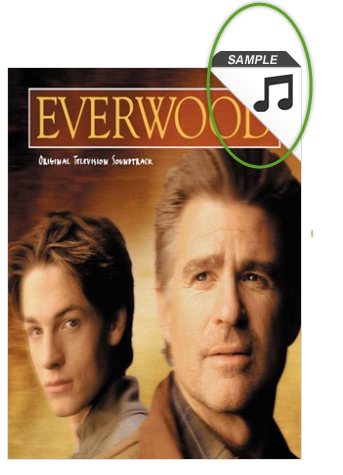
Browsing tip: the music note icon in the top right corner of the image indicates that the item is music. The Ohio eBook Project uses different icons to allow the user to distinguish between the different formats. The icons for eBooks, Audiobooks, Music and Video are below. The different shades of gray reflect the item's availability (dark gray = available; light gray = checked out.)

Clicking on the cover image opens a page with more detailed information about the album – description, track names, number of copies available and even recommendations for you. To sample the album click Sample in the top right corner of the album cover.

 
Your computer’s media player will open and begin playing a two minute sample of a song from the album.

 
Troubleshooting: If you receive a message saying something like “Windows Media Player cannot play the file because there is a problem with your sound device” this means that either your speakers or head phones are not plugged in. Once they are plugged in click Sample again and everything will work properly.

 
Enjoy sampling and downloading music and movies from Stark County District Library’s digital catalog!

Thursday, February 21, 2013


Earlier this month the library subscribed to 127 digital magazines through an online newsstand called Zinio. Card holders can download unlimited magazines within this collection and keep them with no due dates.  These digital copies are exactly like their paper versions with the added bonus of hyperlinked, interactive features.  Continue reading for step-by-step instructions to begin your digital magazines experience with Zinio.

I. Create a Stark County District Library Authenticated Account:

1. This account will give you access to Stark County District Library’s digital subscriptions. Go to www.rbdigital.com/starkcountyoh/zinio and click Create Account.

2. Enter the required fields and click Create Account.

3. A message will appear stating that a confirmation email has been sent to you.

4. Check your email, and confirm your email address by clicking the link.

5. You will be redirected to Zinio. Click Return to Login.

II. Check Out a Magazine

1. Sign in to Zinio.

2. You can click through the pages to view images of the magazines available or, search for specific magazines by using the search fields at the top of the page. These options allow you to browse alphabetically, search by genre, or perform a keyword search.  To check out a magazine, click on the image or its link underneath.

III. Create a Zinio.com Account:

1. A second window will open to zinio.com.  If you are new to zinio.com, you will need to create a free account.  This is separate from your library authenticated account, and it is required for you to view magazines online or through mobile apps. (NOTE: Use the same info as your library authenticated account above). Then click continue.

2. The next page will allow you to set your preferences.  If you do not want to receive consumer advertisements, leave the boxes unchecked, enter additional information if desired and hit submit.

3. To check out more magazines, go back to your library authenticated Zinio account and click on the images/links of the titles you want to check out.  Each title will now open in your zinio.com library.  To read, click the magazine within your zinio.com account and a new window will open to view.

Please contact the SCDL location nearest you if you have any questions about Zinio, and keep an eye out for upcoming classes!
SJ

Wednesday, January 23, 2013

Get Kindle ebooks from the library on an Android Smartphone

You can get Kindle ebooks from the library for your Android Smartphone just by installing the Kindle app on your phone.  You will also need to have an Amazon Account.   Amazon does not require a credit card to set up an account or to register your Smartphone.   If you do not have an Amazon account you will need to create one to get the app.   Visit Amazon.com  and follow their directions for creating an account and then go to the app store on your phone to get the Kindle app.  If you already have an Amazon account you will need your Amazon username and password to register the app on your phone.

To get the Kindle app on an Android phone:
1.  Go to Play Store in your Kindle app. 
2.  Tap the search icon in the upper right hand corner of the screen.
3.  Type Kindle app in the search box.
4.  Tap on the Kindle app from the list of search results.
5.  Tap the Install button.
6.  Tap the Accept and Download button.
7.  Once the app is installed tap the Open button to open the app.  
NOTE:  You will have a screen to enter your Amazon account Username and Password.
Once you have entered these tap the Register this Kindle button.   

NOTE:  Your Kindle app is now up and running.  You will not need to go through these steps in the future.  Once the device is registered the app will open to a book carousel when you tap on it.

Searching for a ebook using SCDL and the Ohio eBook Project:
The Stark County District Library provides ebooks through The Ohio eBook Project   www.ohioebooks.org.  You can get books for your phone by searching for them from a computer and sending them via wifi to your phone, or in some cases you can use the browser on your phone to open the Ohio eBook Project to search for and download Kindle ebooks. 
1.  In order to get library books on your phone using a computer you can open your browser and go directly to www.ohioebooks.org   
2.  You will need to be in a wifi area and have the phone wifi turned on in order for your book to be delivered to your phone.
NOTE:  eBooks will not transfer over 3g. 

It is possible to search for and download kindle ebooks on some Android Smartphones.  To search on your phone, open your browser and go to www.ohioebooks.org.  From the advanced search area of the site you will be able to tell if your phone will search for Kindle ebooks.

 For more information on how to search for and download Kindle ebooks from the library, please visit our Computer Training page at http://www.starklibrary.org/download-e

Thursday, January 10, 2013

Get E-Pub and PDF ebooks from the library on an Android Smartphone

You can get ebooks from the Stark County District library for your Android Smartphone by installing the Overdrive Media Console app on your phone. 

To get the Overdrive Media Console app on an Android phone:
  1. Visit your Play Store and search for Overdrive Media Console app.  The app is free. 
  2. To install the app, find it in the Play Store and tape the Free button.  Then tap the Install app button.
  3. Once it is installed, tap the Open button to open the app.  
  4. You will need to create an Adobe ID to register the app once it is installed.  You will not need to go through these steps in the future. 
  5. Once it is registered it will open to a bookshelf where any books you currently have are listed.  
  6. Typically the only book initially listed on the Bookshelf will be the Welcome to Overdrive Media Console audiobook. 

To search for a library book tap your menu button and select the Get Books option:
  1. Tap the Add a Library button. 
  2. Enter the requested information and tap search. 
  3. Select Stark County District Library from the list. 
  4. On the next screen select The Ohio Ebook Project.  This will add the Ohio Ebook Project to your library list and is where you will be able to get ebooks from Stark County District Library. 
To go to the Ohio eBook Project site:
  1. Tap on the Ohio Ebook Project and it will open. 
  2. From there you can search for E-Pub and PDF formatted books and download them directly to your phone via wifi. 
NOTE:  For more information on how to search for books please visit the our Computer Training page at http://www.starklibrary.org/android-overdrive-and-kindle-apps